
To ensure our WooCommerce Postcode Checker plugin works properly with WooCommerce Checkout Field Editor, it needs to be aware of the existence of the new street name, house number, and address addition fields.
Step 1: Set up Postcode Checker #
The Checkout Field Editor only supports fields that take up half or full width of the form, so the Postcode Checker settings must match this.
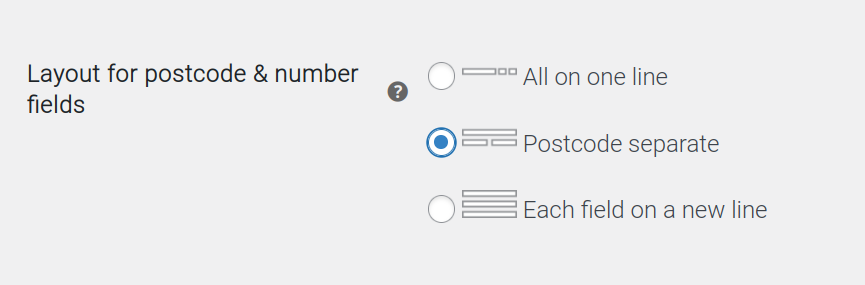
Go to WooCommerce > Settings > Checkout and scroll to the “Postcode Checker” section. For the option “Layout for postcode & house number fields”, choose either “Postcode separate” or “Each field on a new line.”
Step 2: Reset Checkout Field Editor #
To ensure that the Checkout Field Editor reads the Postcode Checker fields, it needs to be reset (as described here in the official documentation).
⚠️ Please note that all customizations will be lost during this process and will need to be configured again!
- Go to WooCommerce > Status > Tools
- Click on “Reset Checkout Fields”.
Step 3: Set up the Checkout Field Editor #
Now that the Checkout Field Editor has read the Postcode Checker fields, they are visible under WooCommerce > Checkout Fields.
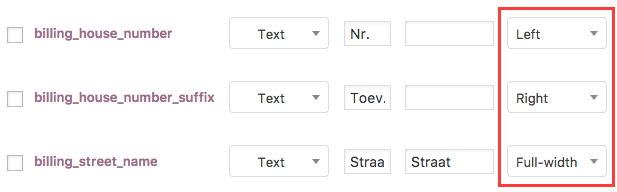
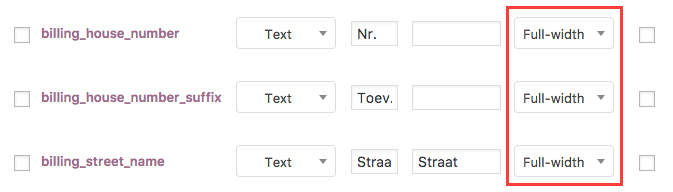
To ensure that the layout settings match those of the Postcode Checker, the following “Position” settings must be applied (note: both the Billing Address (“Billing Fields”) and Shipping Address (“Shipping Fields”) need to be adjusted!):
Option 2: Postcode separate #
Option 3: Each field on a new line #
You can now set up or adjust your original fields again.


