
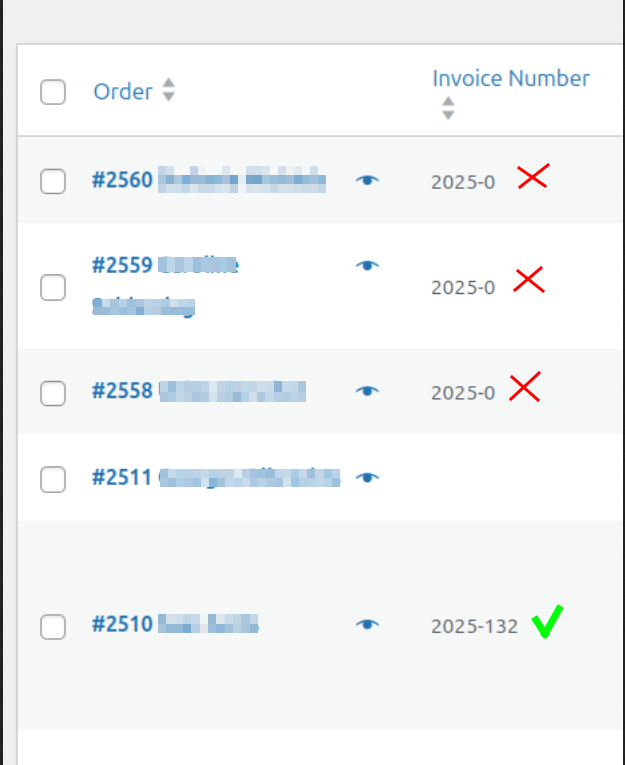
You may encounter an issue where the system generates an invoice – automatically or manually – giving the number 0 as next invoice number.
Check the Enable document data editing setting #
Path: WooCommerce > PDF Invoices > Advanced > Settings > Document Management & Behavior > Enable document data editing.
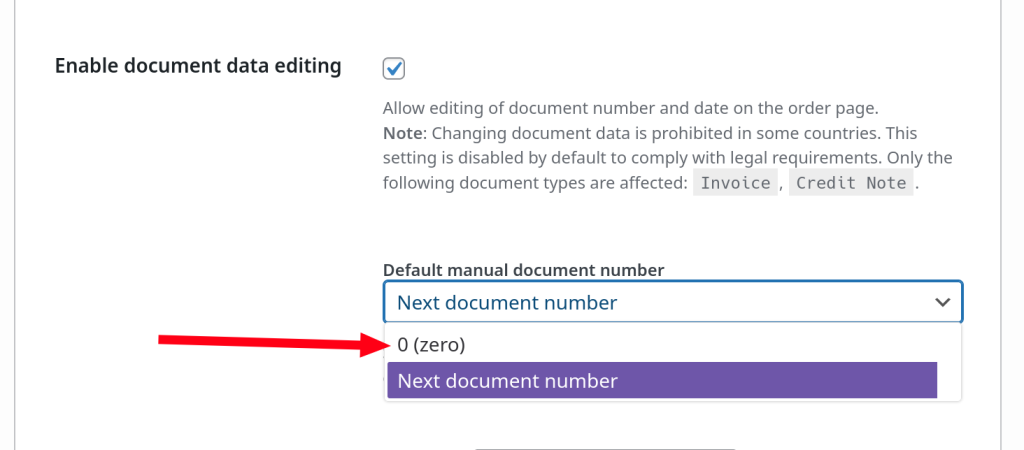
If this is set to “0 (zero)“, change this to “Next document number“.
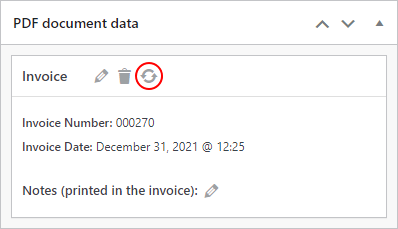
Afterwards, regenerate a document in order to see if the issue is resolved.
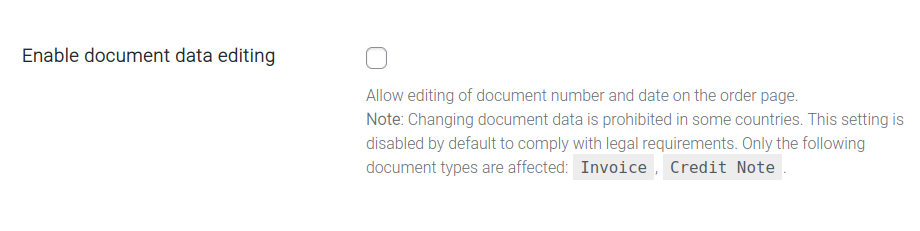
If the above does not work, you should completely disable the setting – instead of just changing its value.
Check database #
When viewing the database, check the structure of the database table.
- The “Extra” column should be set to “AUTO_INCREMENT“. This configuration is important as it tells the ID to increase by 1 when necessary. If this is not set, this will likely lead to number repetition.
- Check the value of the “Default” column and the “ID” row.
Below is the image of the database structure of a site that does not suffer from document number incrementing issues.
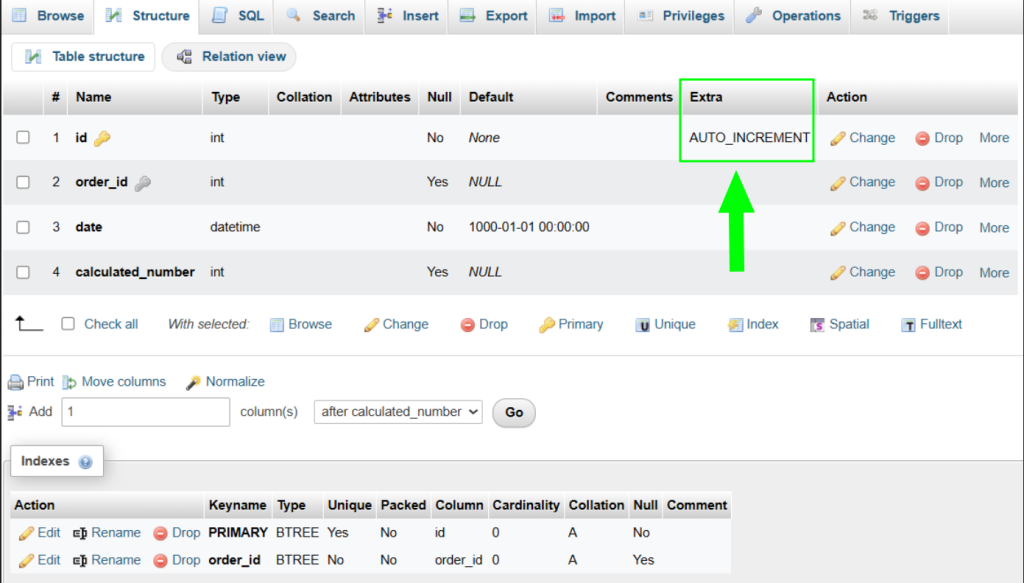
If your document IDs are completely messed-up and you have too many to manually fix, you could use this SQL script to automatically increment the ID values of your documents.
SET @i = 0;
UPDATE
    p2v_wcpdf_invoice_number
SET
    id = (@i := @i + 1)
ORDER BY
    order_id;
Do note that you may still need to manually edit some IDs, even if using this script.
Clear or disable caching #
After performing any of the changes mentioned above, consider clearing your cache or temporarily disable any form of caching present. Caching could make the site behave as if changes were not yet applied, thus causing confusion.


