
Requirements #
Payment reminder creation #
Create reminder email manually #
Path: WooCommerce > PDF Invoices > Documents > Invoice > Document details > Create payment reminders.
Meeting the requirements adds a new button to allow for creating payment reminders.
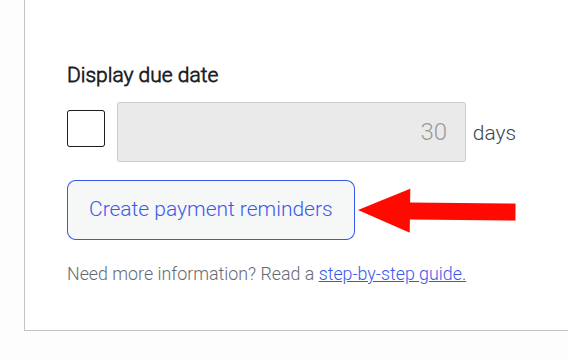
Click this button in order to manually create payment reminder emails.
Create reminder email automatically #
Path: WooCommerce > PDF Invoices > Documents > Invoice > Document details > Display due date.
The “Display due date” must be enabled and configured.
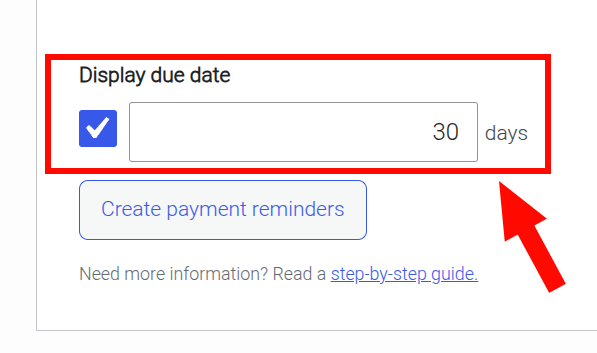
After setting the desired due date, save your settings. Once a configured due date is met, the associated reminder email will be created automatically.
Edit created reminder emails #
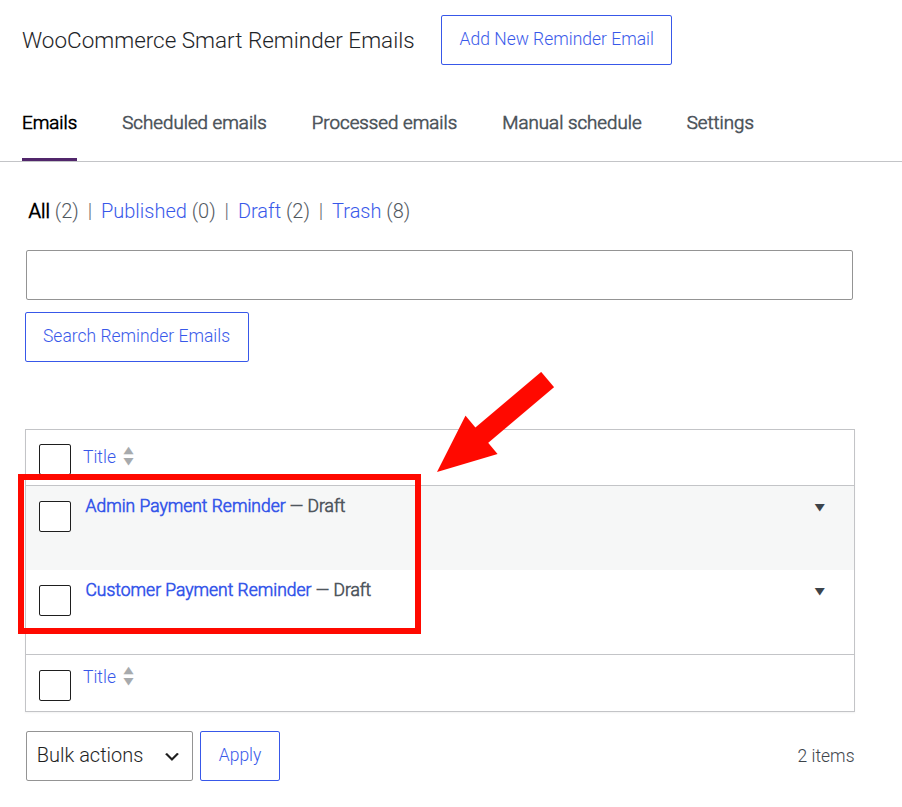
Whether reminder emails are created manually or automatically, there will be two new pre-configured reminder emails, with the Draft post status:
- Admin Payment Reminder
- Customer Payment Reminder
Path: WooCommerce > Reminder Emails.
New reminder email trigger status #
By default, created reminder emails will have the new “Invoice creation” trigger status added to their Email triggers.
Path: WooCommerce > Reminder Emails, then select a reminder email.
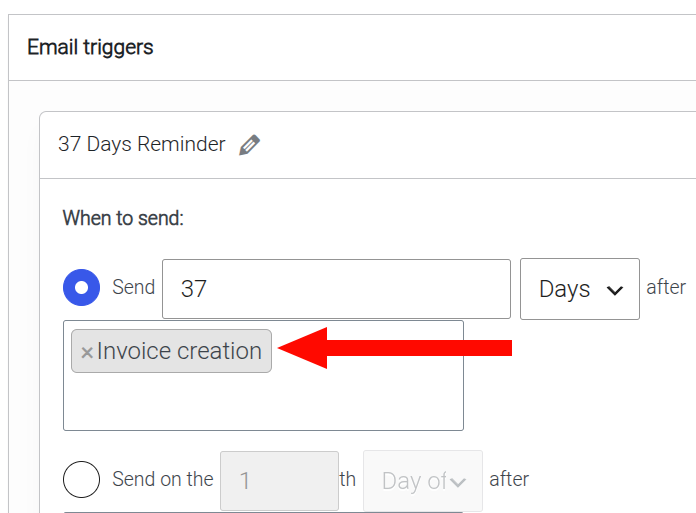
This means the reminder email can be configured to be sent based on when the PDF Invoice was generated.
See configuring the email trigger for more.


