Alternate Billing emails can be sent to specified email addresses, automatically & manually.
Required plugins #
PDF Invoices & Packing Slips for WooCommerce – Professional v2.x.x.
Settings location #
Path: WooCommerce > Settings > Emails > Additional Billing.
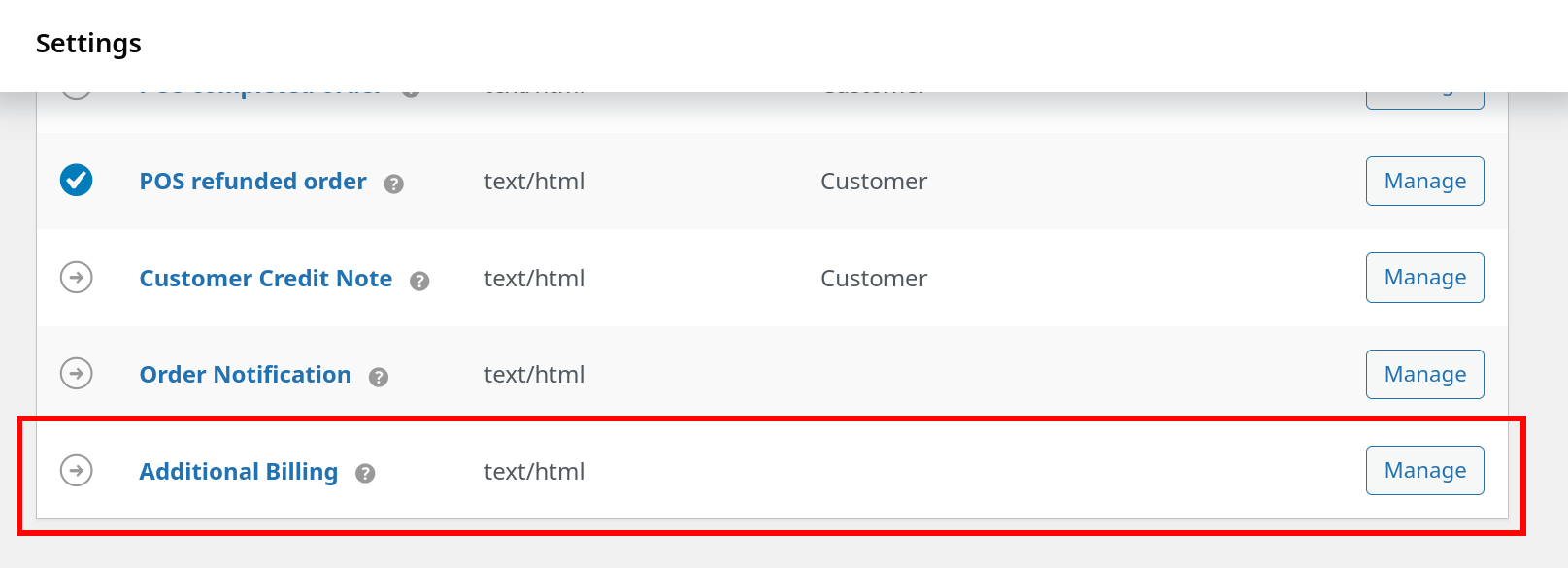
Click the “Manage” button on the right or on the email’s title in order to reach the setting to enable the email (Enable/Disable).
All available settings #
Enable/Disable #
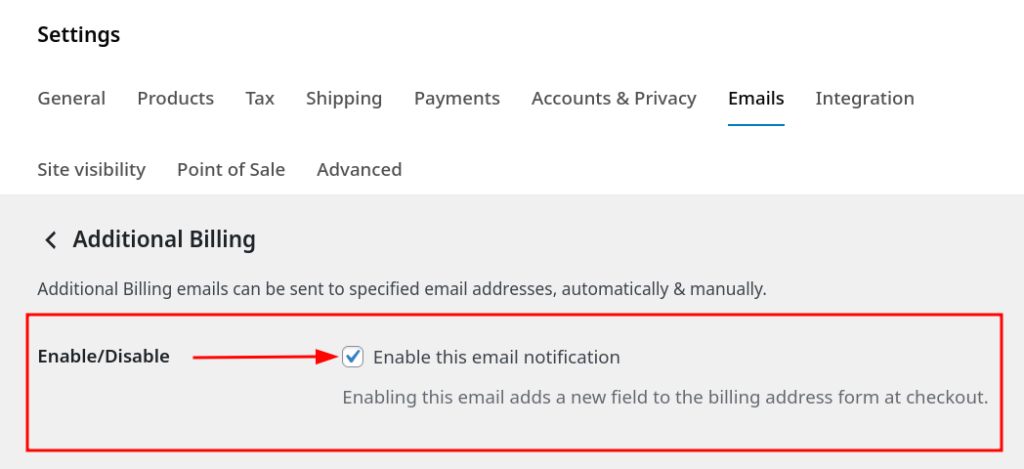
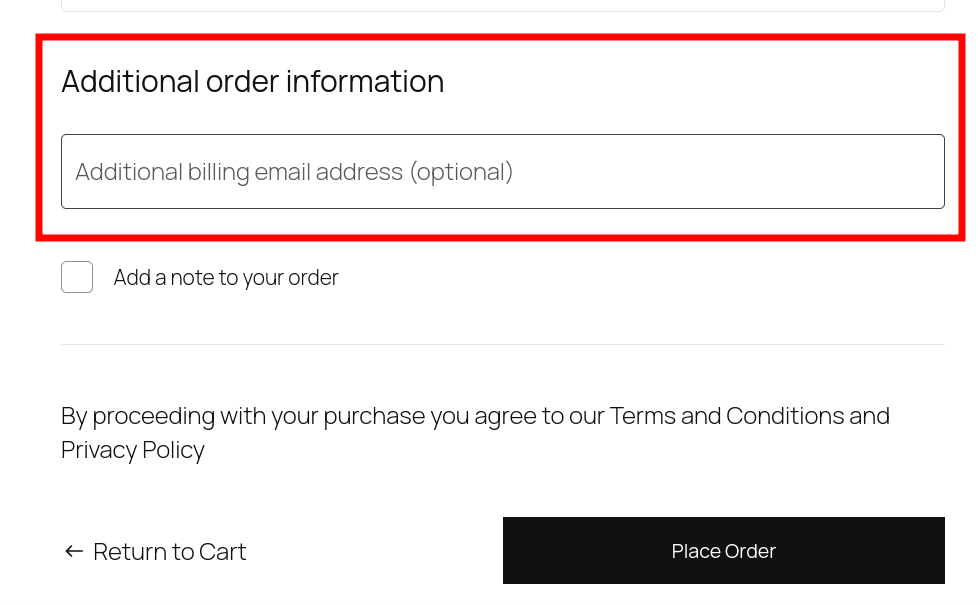
Enabling this email adds a new field to the billing address form at checkout.
- Result of activation – classic checkout:
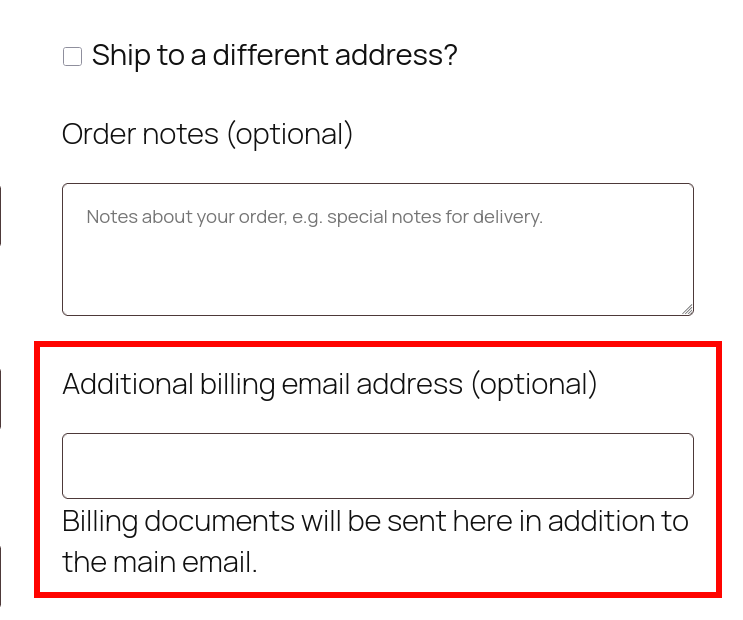
- Result of activation – woo checkout blocks:
Triggers #
Choose the action that will trigger this email upon document creation. Emails are only sent the very first time a document is created.
Four types of triggers are defined:
- Manual
- Invoice created
- Credit Note created
- Invoice or Credit Note created
About manual trigger #
- The manual trigger will attach both the invoice and the credit note (if a refund also exists).
Recipient(s) #
- Enter recipients separated by commas.
- Can only use the {customer} placeholder, to send the email to the customer.
Example usage:
{customer}, test1@gmail.com, test2@gmail.com
Email subject #
- Enter the email subject.
- Can use all available placeholders.
Example usage:
{document_type} for {site_title} Order #{order_number}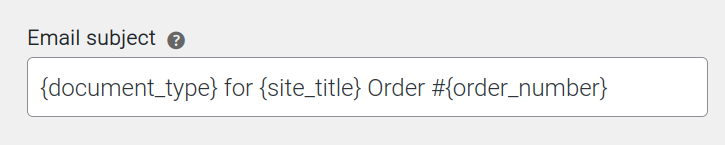
Email heading #
- Enter the email heading.
- Can use all available placeholders.
Additional content #
- Define the text to appear below the main email content.
- Can use all available placeholders.
Customer details #
Decide whether to Include customer details in the email.
Email type #
Choose the email format.
Available options:
- Plain text
- HTML
- Multipart
Available placeholders #
The following placeholders can be used in all the settings with textboxes, except for the Recipient(s) textbox field, which can only use the {document_type} placeholder.
- {site_title}
- {site_address}
- {site_url}
- {store_email}
- {order_date}
- {order_number}
- {document_type}
About {document_type} placeholder #
The {document_type} placeholder has been introduced to differentiate between emails that either contain invoices or credit notes. When triggered manually, if an email includes both document types, this placeholder will list both names separated by an and.
Example placeholder usage:
Document type(s): {document_type}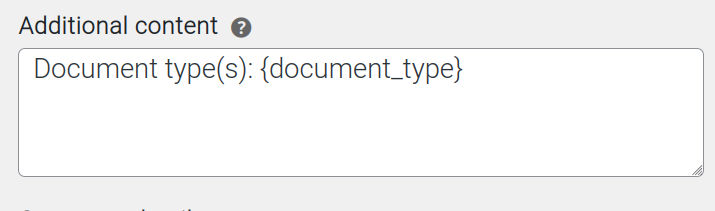
Result in email: