
View all tasks #
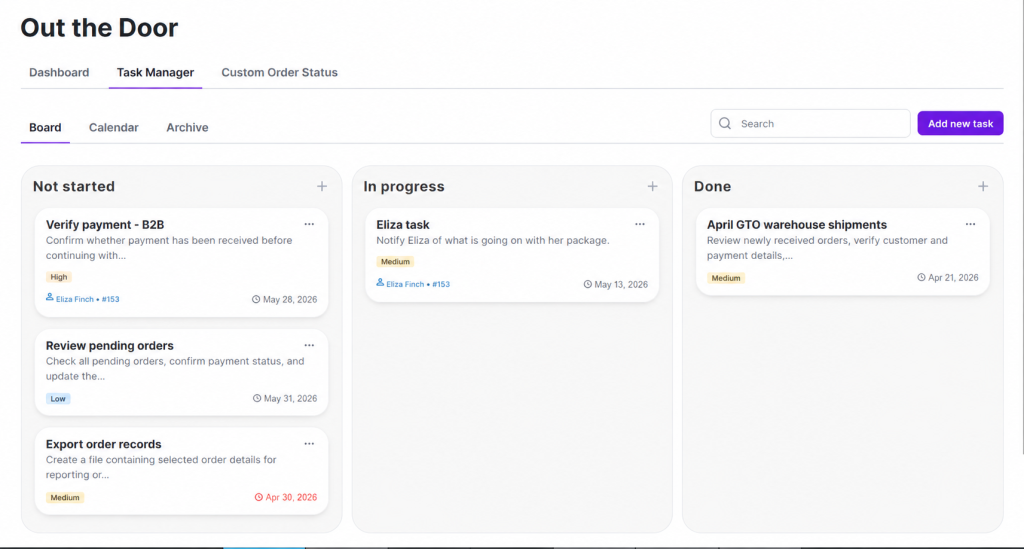
This is the task overview screen, with columns available to categorize each task.
Path: WooCommerce > Out the Door > Task Manager > Board.
Create a new task #
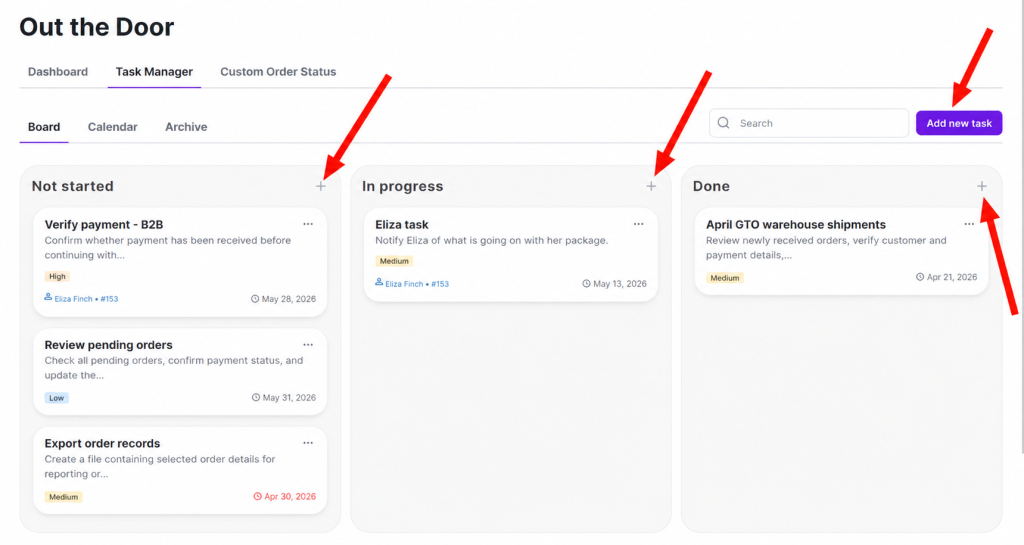
A task can be created within multiple areas within the Out the Door plugin settings:
Path: WooCommerce > Out the Door > Task Manager > Board.
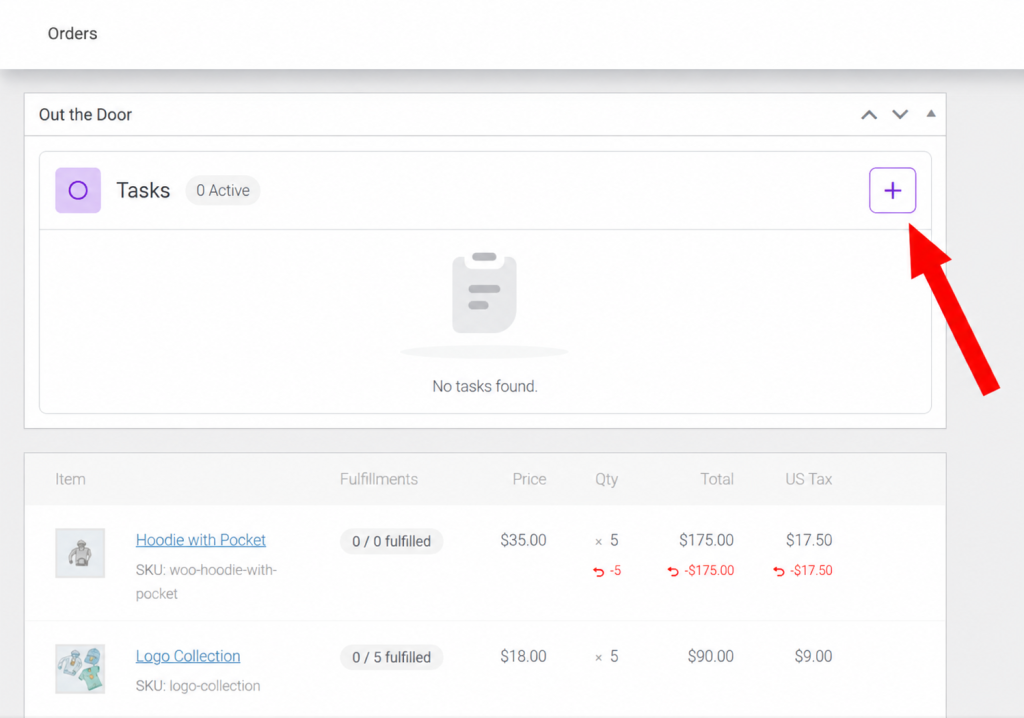
A task can also be created from the WooCommerce order details screen from the admin side:
Path: WooCommerce > Orders > Order #abc, then look for the ‘Out the Door‘ section.
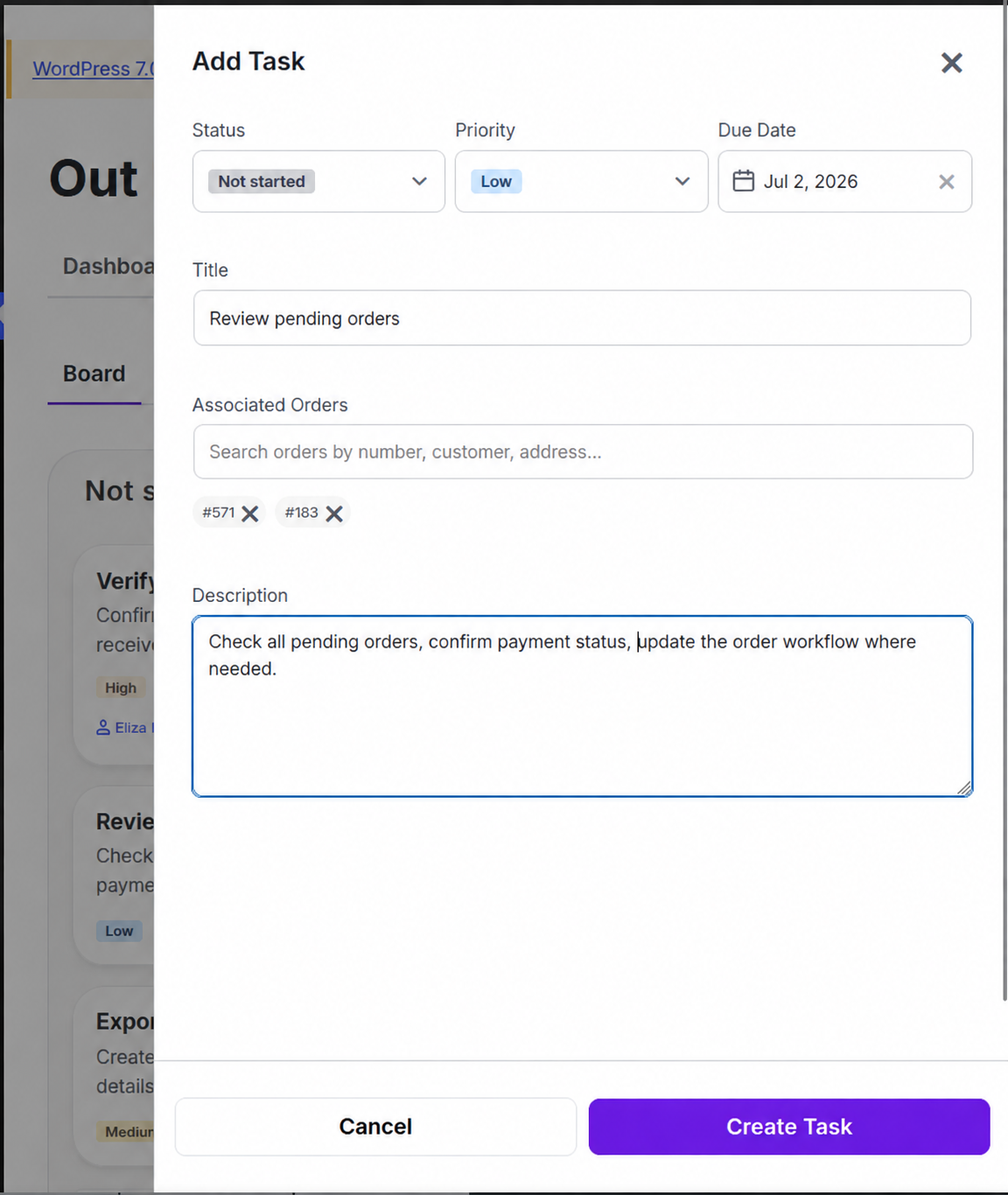
After clicking the button to add a new task, a sidebar is revealed, allowing for defining the task data.
In the task editing screen, set the:
- Status
- Priority
- Due date
- Title
- Associated Orders
- Description
Search a task #
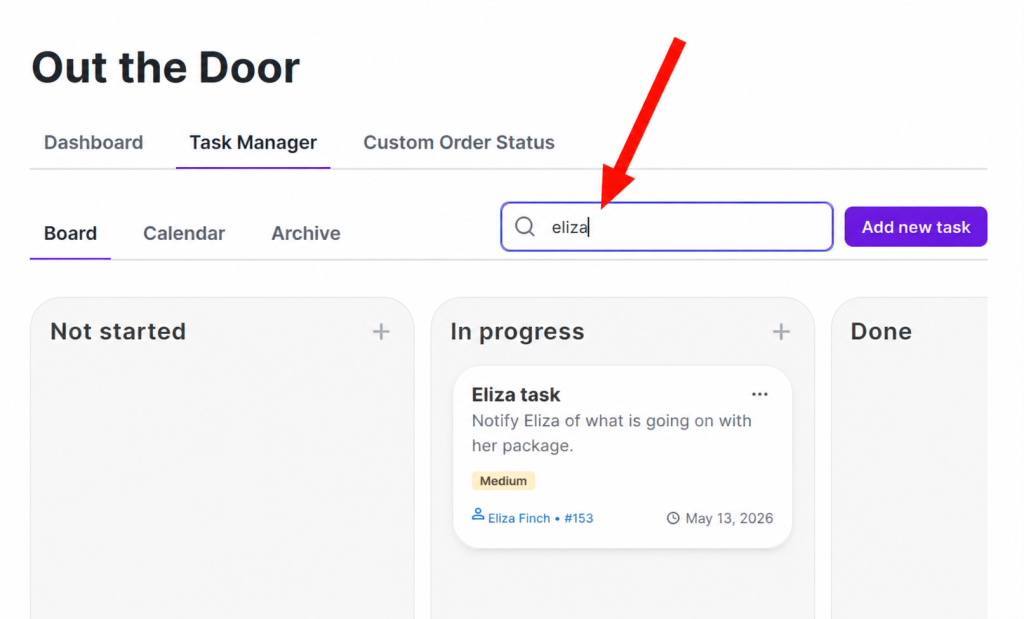
Search by task name #
Path: WooCommerce > Out the Door > Task Manager > Board.
The indicated textbox in the image below will help you find a certain task.
Search by date #
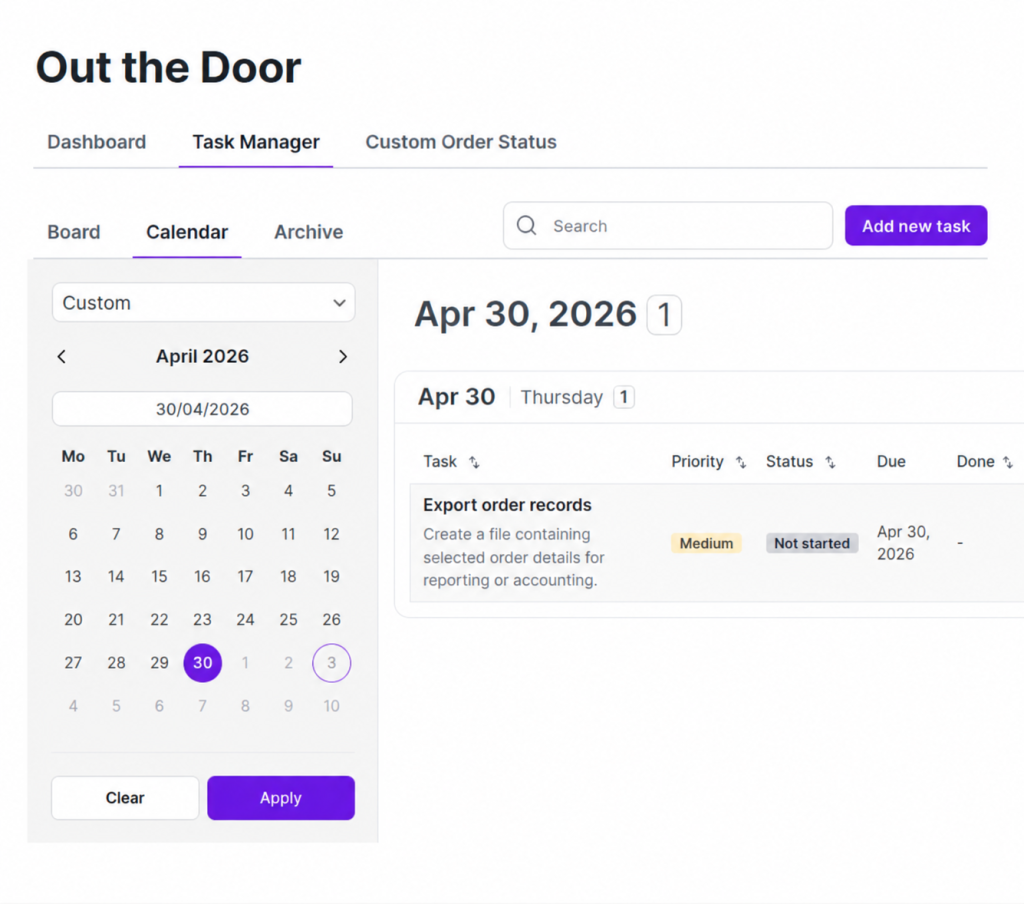
Path: WooCommerce > Out the Door > Task Manager > Calendar.
This will this tool a task can be search for using a date range or a single date.
Archive a task #
This is where historical records are kept. This is where to put things like fulfilled tasks and tasks that will no longer be addressed.
Path: WooCommerce > Out the Door > Task Manager > Archive.
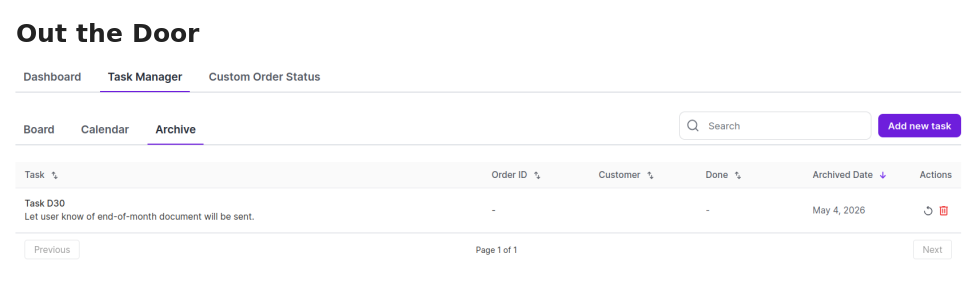
Tasks in the archive can be restored back into the regular task overview (the Board tab) or they can be permanently deleted from the Task Manager.


